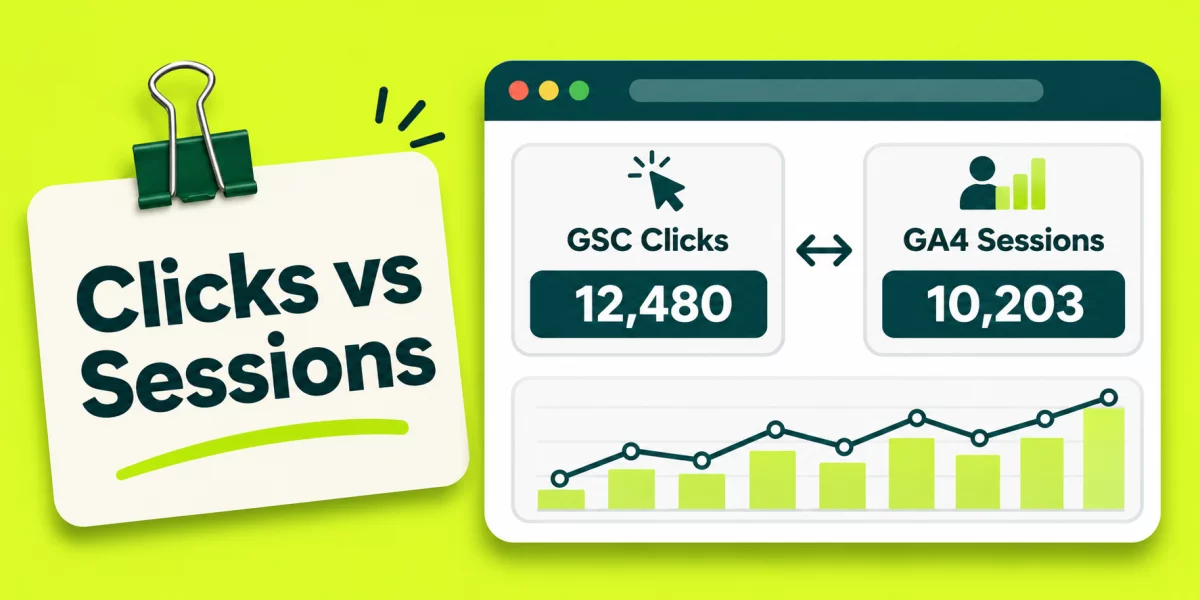
Search Console clicks and GA4 sessions count different things. Search Console counts clicks from Google Search results. GA4 counts visits based on the website activity it receives. Several search clicks can happen during one session. Another click may reach a page where GA4 never records a visit.
Different totals alone cannot identify a tracking problem. A sudden difference across the same pages deserves a closer check. Start with matching reports before changing any tracking code.
Compare the Right Reports Before Checking Tracking
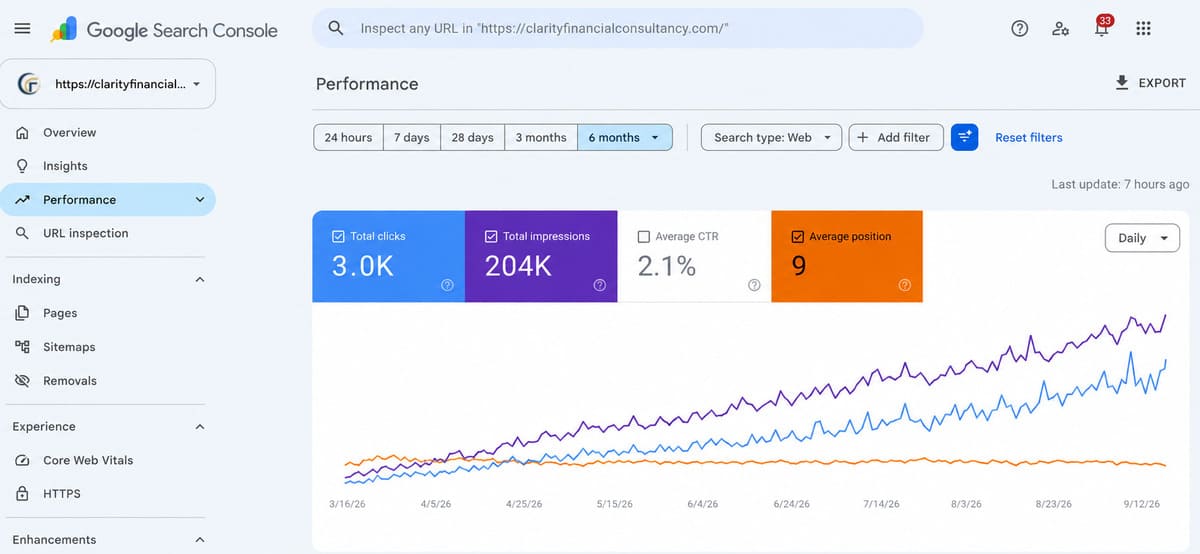
Compare Google Search Web clicks with GA4 sessions from google / organic. Total GA4 sessions include visits from other websites and apps. The Organic Search channel also includes search engines beyond Google.
| In Search Console | In GA4 |
|---|---|
| Open Performance → Search results. | Open Reports → Acquisition → Traffic acquisition. |
| Choose Search type: Web and a completed date range. | Select Session source / medium as the table dimension. |
| Read Total clicks from the chart. | Search google / organic and read Sessions. |
| Note any country, device, or page filter. | Match the same country and device filters where possible. |
Check property coverage before comparing totals. A Search Console Domain property includes subdomains and HTTP or HTTPS versions. A URL-prefix property covers only its matching addresses. Your GA4 property may collect visits from several website areas. Google describes Search Console property types.
These reports are the closest comparison. Some Google organic sessions still fall outside the Search Console Web view. Google recommends comparing clicks with Google organic sessions.
A Google Search Click May Never Reach GA4
Search Console can count a click before GA4 receives a website event. Someone may close the page early, lose connection, or block analytics. A missing Google tag can leave an entire page without sessions.
Imagine a printer maintenance business in Mysuru. Its service pages use the normal website template. A newer enquiry page uses another template without the GA4 tag. Search Console can record clicks leading there, while GA4 misses those visits.
Test the exact landing page, not just the homepage:
- Open the affected page on desktop and mobile.
- Use Tag Assistant to check the Google tag and measurement ID.
- Check Reports → Realtime in GA4 while testing the page.
- Repeat the test with each available analytics consent choice.
- Inspect redirects and page errors when the visit still fails to appear.
Consent Mode needs a separate check. It controls how Google tags respond to cookie choices. Some eligible GA4 properties include modeled sessions for visitors who decline analytics cookies. A consent refusal therefore does not always remove every visit from reports. Google documents the conditions for behavioral modeling.
One Visitor Can Produce Different Click and Session Counts
GA4 starts a session when website activity arrives without an active session. The default timeout follows 30 minutes of inactivity. One visitor can open several pages during that period without starting new sessions.
A buyer might click a Google result, browse products, and return from Search soon afterward. GA4 can continue the active session. Search Console uses its own click rules and may count another qualifying search click.
The opposite can happen after the visitor returns the next day. A new GA4 session may begin without another Google Search click.
Search Console also groups some clicks within its own reports. When counting a whole property, Google can count two clicks on its results as one. The Pages table can count each clicked URL separately. Google documents property and page aggregation.
Why GA4 Can Show More google / organic Sessions
First check the Session source / medium dimension. Avoid comparing Search Console clicks with First user source or all Organic Search traffic. Those numbers cover different groups.
Attribution describes how GA4 assigns a visit to a traffic source. Under eligible conditions, GA4 can credit a direct return to earlier Google organic traffic. Suppose the Mysuru customer first arrives through Google, then visits again using a saved URL. GA4 may credit that return to google / organic. Search Console has no new search click. Google documents session attribution and report scopes.
A second cause is website coverage. GA4 might measure several subdomains while Search Console covers one URL prefix. Campaign tagging and traffic-source classification can also change GA4 totals.
Review the source labels and property scope before changing tracking code.
Canonical URLs and Redirects Can Split Page Totals
Search Console generally credits clicks to the Google-selected canonical URL. That is its preferred address for matching pages. GA4 records activity on the page sending its events.
For the Mysuru business, Search Console may credit /printer-maintenance/. A redirect sends visitors to /services/printer-maintenance/. GA4 records the second address after its tag loads. Comparing the two page rows creates a mismatch even when the visit was recorded.
Check the affected page in Search Console → URL Inspection. Then compare its canonical URL, redirect destination, and GA4 landing page.
PDF results need a different measurement check. Google Search can send clicks directly to PDF files. A PDF cannot execute the normal website GA4 JavaScript tag. A separate PDF-download click event cannot replace a session on that PDF itself. Google covers canonical URLs and non-HTML files.
Report Dates and Hidden Queries Change the Comparison
Search Console normally reports dates in Pacific Time. GA4 uses the time zone selected for your property. A click near midnight can fall on different calendar days. Compare completed weeks or months rather than daily totals alone.
Search Console data is normally available within 2–3 days. GA4 processing can take 24–48 hours. Google documents both timing differences and GA4 data freshness.
Do not add up query rows to recreate the Search Console chart. Google hides some rare queries for privacy. Table limits and different aggregation rules can also change row totals.
| Search Console number | How to use it |
|---|---|
| Total clicks chart | Starting total for an unfiltered site-wide comparison |
| Queries table | Identify visible search terms, with some rare queries omitted |
| Pages table | Review URLs, using Search Console canonical and page-grouping rules |
A smaller Queries table alone cannot prove GA4 missed visitors. Google documents the reporting limits.
Diagnose the Pattern Before Changing Website Tags
Look for the date and pages where the difference begins. A sharp drop affecting one page suggests another problem than a stable site-wide difference.
| What the reports show | Check first | Next action |
|---|---|---|
| Search clicks stay stable; GA4 sessions fall | Recent tag, consent, or website changes | Test the affected landing pages |
| One page has clicks but few sessions | Redirect, canonical URL, and destination tag | Inspect the final page in Tag Assistant |
| GA4 sessions exceed Search clicks | google / organic, property scope, attribution |
Compare the correct source and website area |
| Mobile traffic changes alone | Mobile redirects, consent, and page template | Test the mobile destination |
| Query rows total less than the chart | Anonymized queries and table limits | Use the chart total |
| Daily counts disagree near midnight | Pacific Time versus GA4 property time | Compare completed longer periods |
When GA4 displays a data-quality notice, inspect sampling or thresholds before comparing totals.
For a deeper tag test, open GA4 DebugView. Verify that the expected event reaches the correct GA4 property. Record each website change alongside its traffic date.
No fixed percentage defines an acceptable difference. The pattern and evidence determine the next check.
Connect the Reports Without Forcing Equal Totals
You can link Search Console and GA4 for easier reporting. Open GA4 Admin → Product links → Search Console Links. The setup requires the Editor role in GA4 and verified Search Console ownership.
The connection adds Google organic search queries and Google organic search traffic reports. An editor may need to publish their collection under Reports → Library. The linked reports still follow the measurement rules of each platform.
For monthly reporting, record Search Console Web clicks beside GA4 google / organic sessions. Add tracked enquiries as a third, separate figure. Include any confirmed tag changes or page issues beneath the numbers.
Search Console measures Google Search clicks. GA4 measures tagged website activity and tracked enquiries. Compare their trends, then investigate a new or unusual difference.

Manish Singh is Head of Generative AI at SEO Noida and has 14+ years of experience in SEO, UX, and digital marketing. He focuses on how Google and AI platforms find, interpret, and cite web content. His articles cover AI SEO, GEO, AEO, LLM SEO, entity optimization, content architecture, and visibility measurement, drawing on website audits and campaign work.